

How to keep your Instagram Stories after 24 hours (5 ways, compared)
Your Archive already keeps your own stories, but only inside Instagram. For a copy you control without lifting a finger, turn on camera-roll saving or back up every new story to Telegram automatically. The second one is the least work.
In this post
You post a story from a concert. A week later you want to show a friend, and of course it's gone from your profile. What follows is ten minutes of digging through menus. Sound familiar?
Stories are built to disappear, but that doesn't mean yours have to. Here's every way to keep them, from what's already built into Instagram to the one that takes the least effort. Everything below is about your own stories.
Menu names change between Instagram versions, and between iPhone and Android. If a label doesn't match exactly, look for the closest one.
1. Instagram Archive: already on, but only inside the app
Here's the good news first. Unless you turned it off, Instagram has been quietly filing every story you post into your Archive. Only you can see it.
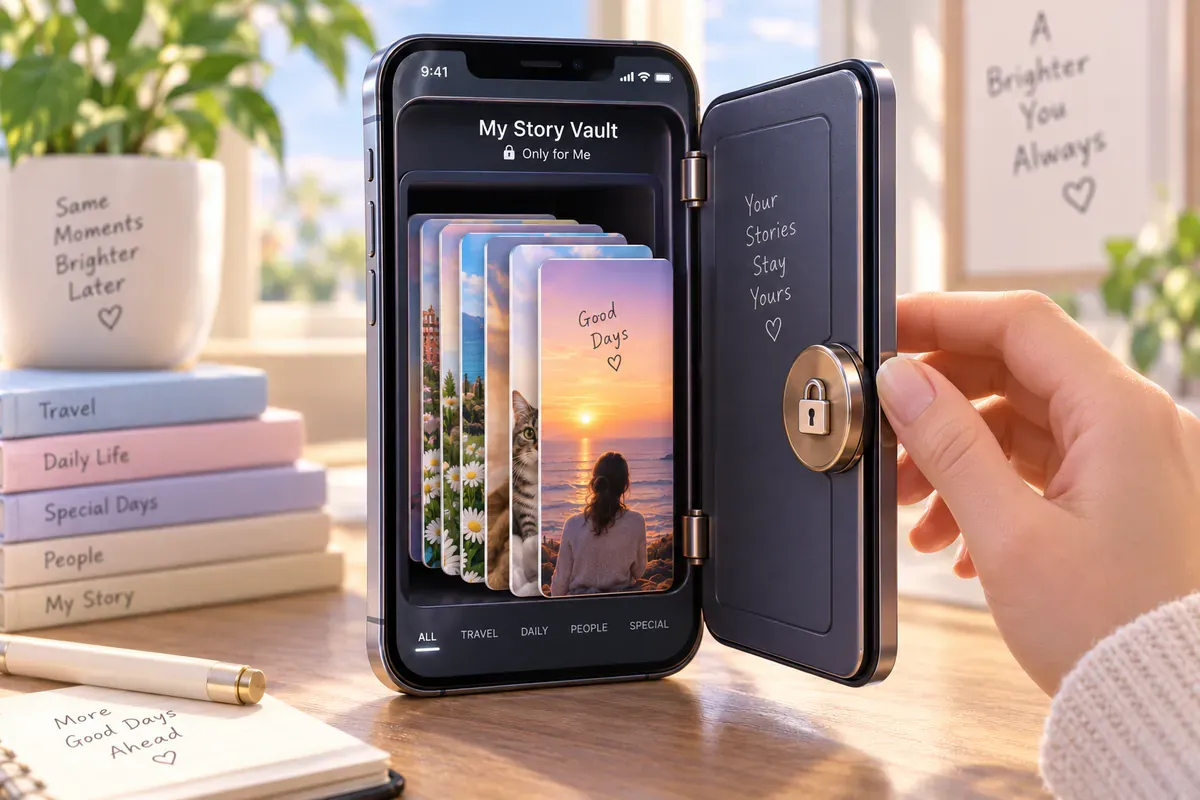
- Profile
- ☰ Menu
- Archive
- Stories archive
Not sure it's on? Open ☰ Menu → Archiving and downloading and check that Save story to archive is enabled.
Good
- Automatic and free
- Keeps stories while archiving is enabled
Not so good
- Only viewable inside Instagram
- Lose the account, lose the archive
- Slow to scroll back through months of stories
2. Save to your camera roll: a copy on your phone
The same Archiving and downloading menu has a switch called Save story to camera roll (on Android it may say gallery). Turn it on and every story you post also lands in your phone's photos.
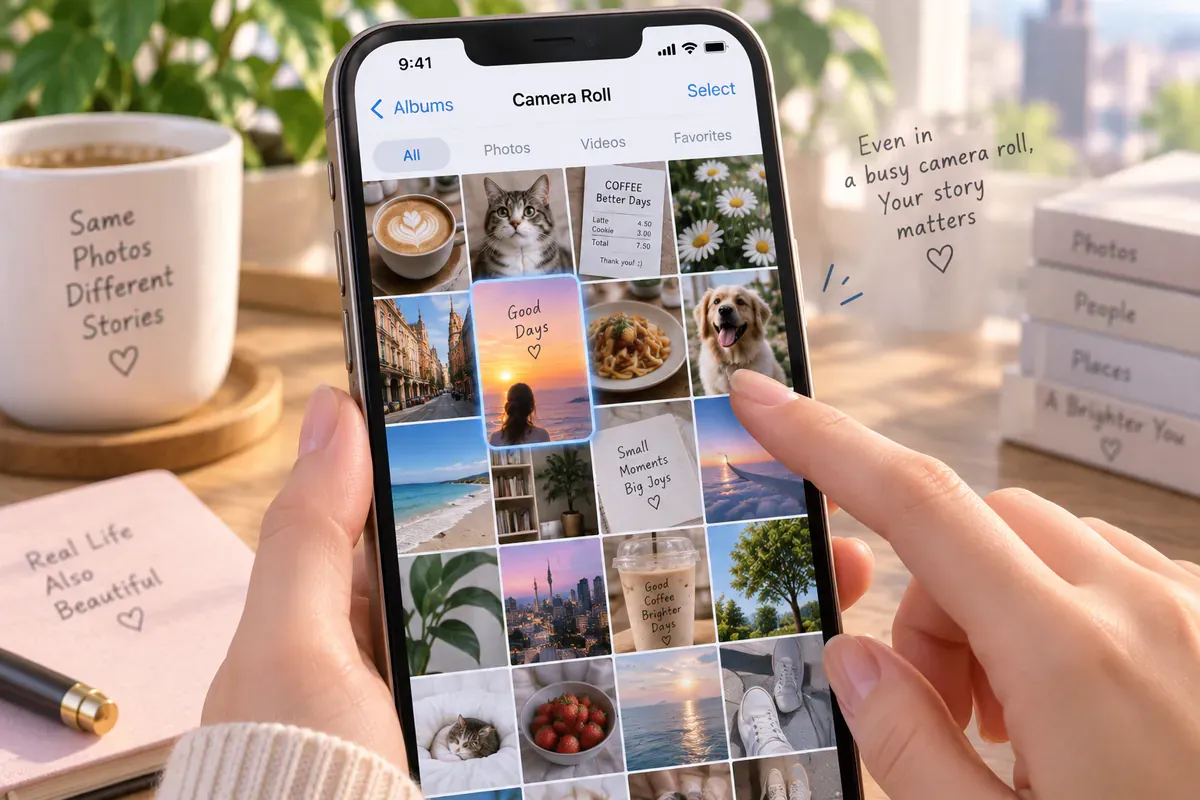
Want just one? Open the story, tap ⋯ More and choose Save.
Good
- A real file you own
- Covered by your phone's normal backup
Not so good
- Mixed in with everything else in your photos
- Only saves from the phone you posted on
- Easy to lose track of after switching phones
3. Highlights: keep the best ones on your profile
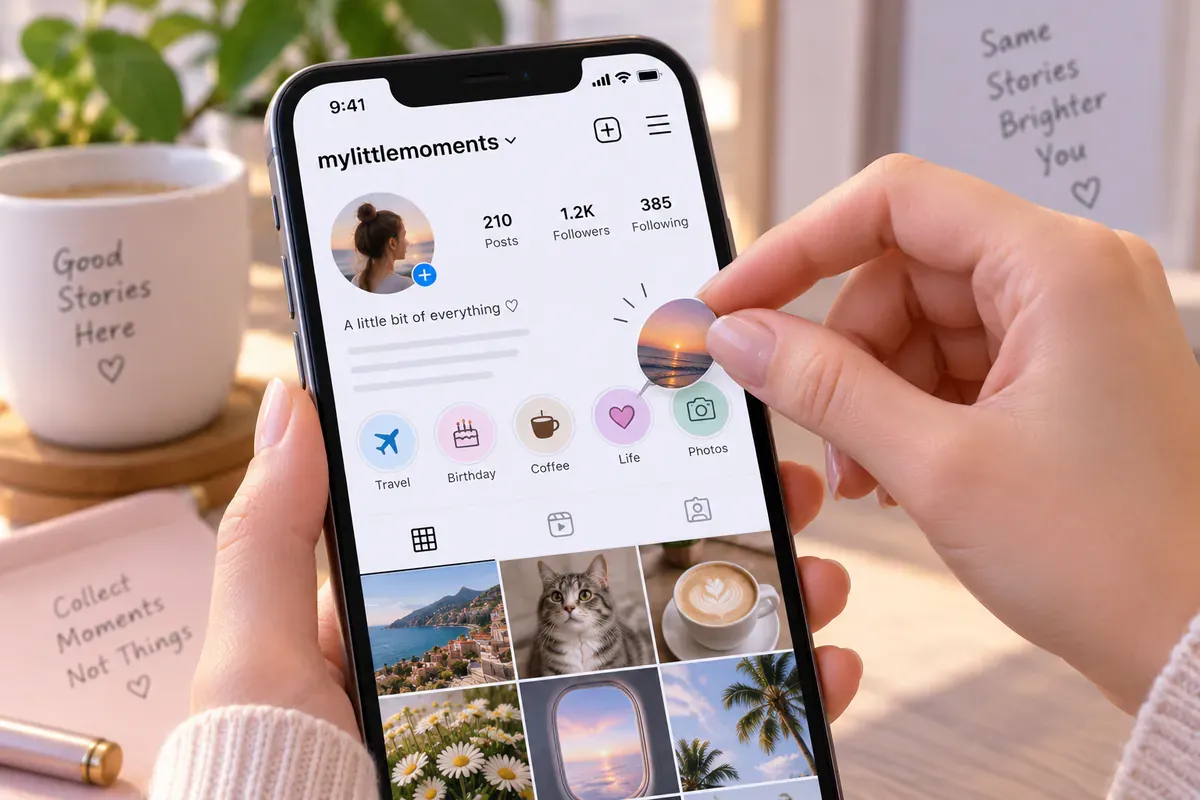
Highlights pin stories to your profile under your bio, and they stay until you remove them. Perfect for the ones you want people to see, like a trip or a launch.
They're not a backup, though. You pick each story by hand, and anyone who can see your profile can see them.
4. Download your information: the full export
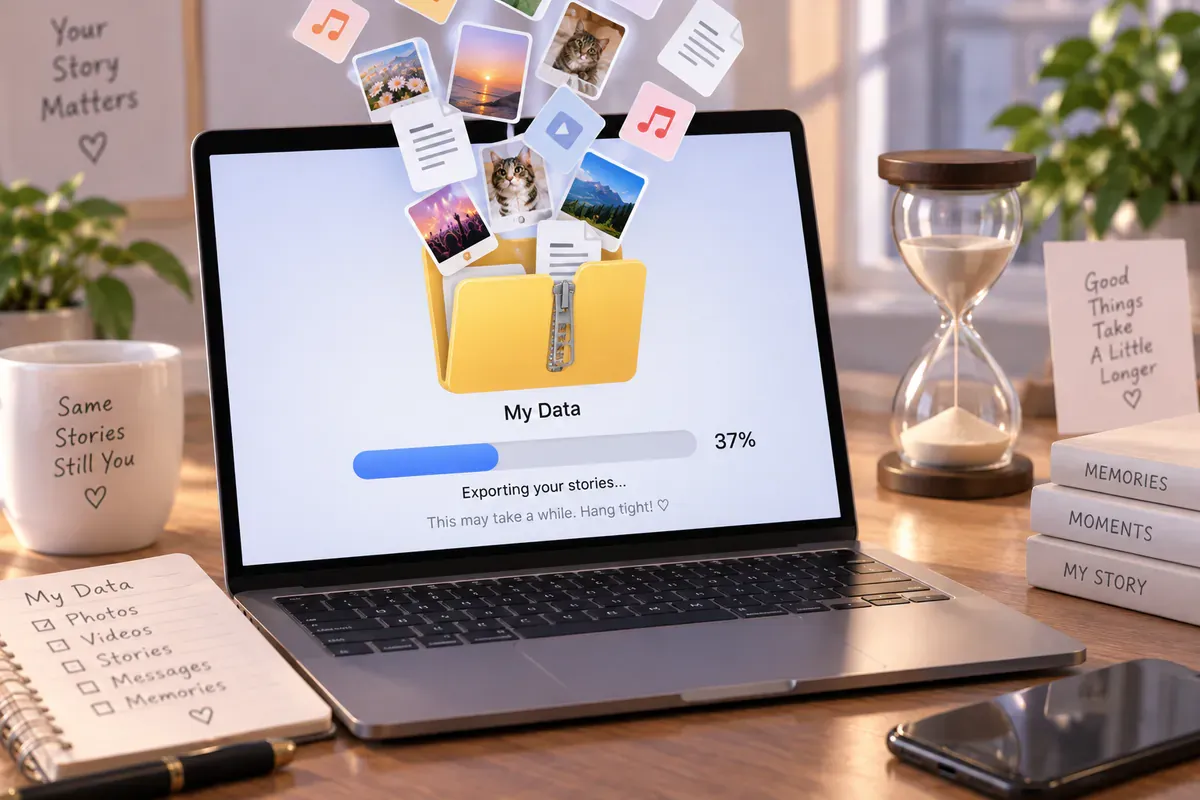
Request an export of the information Instagram still has for your account. The selected dates and categories determine what is included; it cannot recover everything you have ever posted or deleted.
- ☰ Menu
- Accounts Center
- Your information and permissions
- Download your information
It takes a while to prepare and arrives as a folder of files. Fine once a year. Nobody does it every week.
Good
- A copy of the available account information
- Keeps stories while archiving is enabled
Not so good
- Manual and slow to prepare
- Files are organized for computers, not for browsing
5. Automatic backup to Telegram
This is the one that takes the least effort. Every new story from the account is sent to a Telegram chat as the original photo or video, and the chat builds up by date. Nothing to open, nothing to remember.
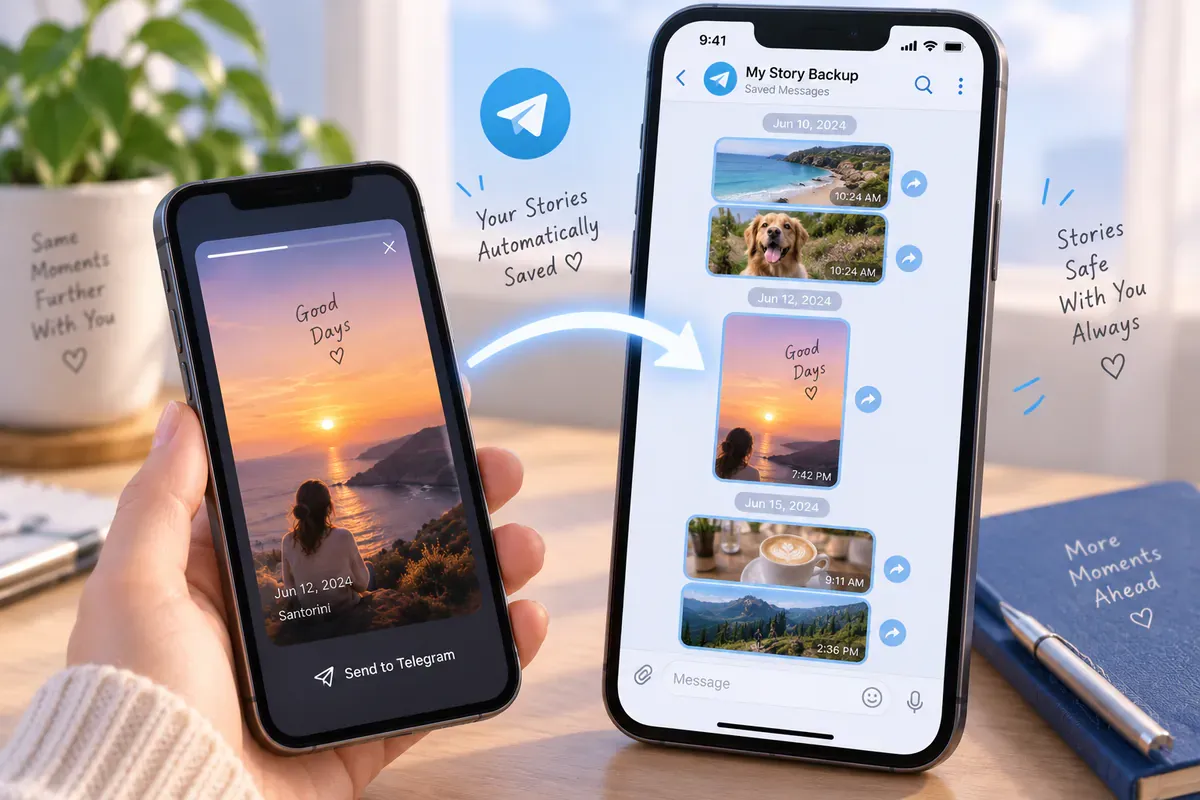
Telegram suits this well: it's free, it syncs between your phone and computer, and scrolling a chat is much nicer than digging through an archive. For every way to get stories into Telegram, see how to save Instagram stories to Telegram.
So which one should you use?
| Method | Automatic | Where the copy lives | Easy to look back |
|---|---|---|---|
| Archive | Yes | Inside Instagram | So-so |
| Camera roll | Yes | Your phone | Mixed with other photos |
| Highlights | No | Your profile (visible) | Only the ones you pick |
| Download your information | No | Files on your computer | No |
| Telegram backup | Yes | A Telegram chat on every device | Yes, by date |
Keep the Archive on no matter what, it costs nothing. Rarely post? Add the camera roll. Post a lot, or already lost a story you loved? Go automatic.
Quick questions
Can I get back a story that already disappeared?
Check your Archive first. If Save story to archive was on when you posted it, it's there. If it was off and you didn't save it anywhere else, there's usually no way back, which is the whole reason to set something up now.
Do these methods work for other people's stories?
No. Everything in this post is for your own account. Instagram's options only save stories you posted, and Story Autosave works with public accounts only.
References and further reading
Keep reading
How to save Instagram stories automatically (3 ways)
Turn on Instagram's two auto-save switches, see what each one keeps, and back up every new story to Telegram on its own.
4 min read#Instagram#Stories#Auto-save

How to save Instagram stories to Telegram (3 ways)
Send stories to Saved Messages yourself, use a download bot, or have new stories delivered automatically. How each one works and what happens to photo quality.
4 min read#Instagram#Stories#Telegram

Does Instagram notify when you screenshot a story? (2026 answer)
No. Instagram doesn't notify anyone when you screenshot or screen-record a story. Here's what it does show, and when DMs and vanish mode are different.
3 min read#Instagram#Stories#Screenshots